Thursday, June 30, 2011

Don't Ignore "Updates are ready to install"!

Everybody has seen them. The pop-up balloon in the right hand corner of the screen, down near the clock: “Updates are ready to be installed”. And, every one of us has done the same thing at one point or another, click “Remind me later”.
You’re busy. This email needs to be sent out before 4. The spreadsheet needs to be updated before the next customer. The phone is ringing. I can’t restart my computer right now. The dog is barking. The sun’s rays are too dim during the vernal equinox. Delaying patches or updates to computer software can happen for any number of reasons. It is natural to delay it for a minute.
It is important to remember that those minute delays cannot turn in to days or weeks or months. Whether the patches are for Windows itself, or FireFox, or Anti-Virus definitions, or Adobe Reader, or any number of other software programs, it is imperative that everyone stays on top of them. New software updates can be introduced for a whole host of reasons, including:
- Closes and fixes security holes and exploits
- Fixes possible compatibility issues with new software and operating systems
- Introduces new features while removing outdated features
- Protects AV software against newest viruses and trojans
All of these reasons can improve your computer experience while helping to keep your computer safe and secure from threats, such as hackers and viruses.
Anyone that owns a car will recognize the importance of proactive maintenance. It would be insane to leave an oil change for 15,000 miles or to drive your car until the tires are completely bald. For the same reasons, it would be insanity to use a computer for months without downloading and installing software updates. The damage to your car could lead to catastrophic failure that may open yourself up to injury.
Now, I’m not going to say that failure to run Windows Update will cause injury, but the danger to your personal information or your important documents can be just as real as a broken wrist or a seized engine. And, the computer security community feels the same way. As can be seen in this article from netsecurity.com, keeping your computer up-to-date is no different from eating right and exercising.
When undertaking the process of updating all of your software, there are several steps that need to be taken. The most important step is to make sure Windows has its most up-to-date patches. Microsoft is constantly releasing security patches along with patches to improve compatibility and performance.
To keep Windows updated:
- Make sure Automatic updates is enabled. In Windows 7, this is done by going to Start >> Control Panel >> System and Security >> Turn Automatic Updating on or off. You can change the settings to download and install updates during the middle of the day or the middle of the night if there is a need to avoid peak usage times.
- Check Windows Update regularly. This can be done by clicking Start >> All Programs >> Windows Update. In later versions of Windows, this should help give you updates for the operating system itself along with updates for other Microsoft programs, like Microsoft Office.
After covering updates needed for just Windows or Microsoft, it is important to realize that there are dozens of programs on your computer that need updating. Many of these programs have features that you can select during the installation that allow for auto-updating. These can be quite a benefit in case you have trouble remembering to check for updates.
If you need to check for updates, many programs allow for a quick and easy way to do such things. Many programs, like FireFox and Adobe Reader, allow for a “Check for Updates” feature in their help or tools section. With Adobe Reader open, click on “Help” in the toolbar and then select “Check for Updates”. It only takes a few moments and, once it is done, your computer will be more secure than 15 minutes ago.
Outside of software updates and patches, the next most important updates are the definitions for your anti-virus software. I’m going to take a leap of faith and assume that you have an effective and current anti-virus subscription. However, even if you have that subscription, you need to keep the program up-to-date. For best results, make sure that the anti-virus program is setup for regular definition updates and regular scans.
Viruses, spy-ware, and Trojans are constantly being created. There are always security holes that people attempt to capitalize on with a new threat. For your installed Anti-virus program, constant definition updates are required for optimum performance. Without them, an anti-virus program is, essentially, worthless.
When investigating computer problems, one of the first issues to check on is whether the system is up-to-date. And, one of the very first things to do when ensuring computer security is to make sure all software is patched and updated. It can be considered just as important as password security. A little preventative maintenance from time to time will go a long way in keeping your computer operating securely and efficiently.

Saturday, June 11, 2011

Cloud Computing: Google vs Apple

Pop Quiz: Do you need software installed on your local computer to create a sales proposal for your boss? In order to take the amazing presentation you created to your client's office, do you need to have saved it on a thumb drive? Or worse, should you lug your laptop with you to the client's office just to have access to your files?
Answer: Not any more... thanks to the concept of cloud computing.
Cloud computing is not a new concept, but has been creating a lot of buzz lately. Basically, it's the concept of having secure access to all your applications and files from any network device (i.e. desktop PC, laptop, tablet, netbook, smartphone, etc) without being tethered to a single device.
Sidebar: Interestingly enough, netbooks were created with cloud computing in mind.
All of your personal files such as pictures, videos, music, word processing files, spreadsheets, presentations, etc can be created and/or stored in the cloud. Cloud computing eliminates the aggravation of installing and upgrading software, not to mention the need for a high power PC. It provides access to your data instantly, whenever you want it, no matter where you are.
When we Geeks say "The Cloud", we typically mean a service provided over the Internet. Although, the Cloud could also be your company's network. This provided service could be data storage and backup services such as Dropbox, Mozy, or Carbonite where you have to manually copy files over for later retrieval.... or it could be a application service, a.k.a. "software as a service" (SaaS), allowing you to create a word processing document, spreadsheet, or presentation, host an online company meeting, or even play games... all without lugging around your laptop or CD/DVD or thumb drive. It is possible that your company may be using cloud services without you even knowing it. Using a web-based email service such as Gmail or Yahoo! is an example of a cloud service because your email is stored on servers across the Internet. Even your desktop email software, such as Microsoft Outlook, Outlook Express, or Mozilla Thunderbird, can use servers in the cloud to store your emails.
There are many perceived advantages to Cloud computing including device and location independence, security, agility, scalability, performance, and maintenance to name a few. Cost is claimed to be another advantage, although it seems to be one of those things where "it depends on how you look at it". Regardless of whether you use a Mac, Windows, or Linux powered device or a tablet, smartphone, or netbook - If you can connect to the Internet, you can utilize cloud services. This advantage alone can make cloud computing attractive to businesses who utilize mobile workers, have telecommuting needs, and outsourcing services.
Apple & Google
Two of the more prominent players in this Cloud computing game are Apple and Google. They both already dominate the smartphone and mobile device markets. Google already has a host of applications in the cloud, whereas Apple just recently acknowledged the cloud as the new center of the digital world. However, each company has taken a different approach to cloud computing.
Google...
Like most everything Google does, their cloud computing concept is Web-based. To access most of Google's services, all you have to have is a device with a web browser and an Internet connection. Google has 60+ products and services, many offered at no charge. Some services familiar to most, include Google Mail, Google Calendar, Google Docs, Google Maps, Google Chrome, and of course Google Search. Some maybe not so familiar are Google Bookmarks, Google Finance, Google Gears, YouTube, Google Analytics, Orkut, iGoogle, Google Health, and Blogger (in which this blog was created and posted). There are many more. So, to find out what these services are.... Google it! :)
Since Google designs it's services for simple web-based access, your Google hosted files and folders are not device dependent. You can access your Google Docs files from an Android device or from an iPad. You can create and update your blog from your Galaxy Tab or iPhone using Google's Blogger service. Essentially, with the Google cloud experience, you will create and update your documents in the cloud and those people you have access to your documents can see it using a web browser.
Apple...
Apple has taken an app-centric approach in it's new iCloud service. Apple noticed the problem with keeping your devices, whether a PC, laptop, tablet, or smartphone, up to date and in sync. Their solution is a series of services that syncs all your music, photos, email, contacts, apps, documents, etc and automatically pushing it out to all your devices. Unlike Google, iCloud's document syncing is not web-based. Instead, Apple created several APIs (application program interfaces) that developers can embed in their apps. These APIs will tie the documents created in an app to that app. This will allow you to use the same app you created the document with to edit it later, regardless of which device you choose to edit it from. And when you make any changes, your updated version is automatically synced to all your other devices, without having to use another app to move or upload your files.
Confused yet? Let me give you an example comparing the two approaches...
Say you created a document you plan to submit in the The Atlanta Journal-Constitution on how Kardon Technology swooped in and saved the day for your business in record time when your network crashed. While in a cab on your way to a meeting, far away from your PC in your office where you started creating this article, you decide you want to add to your article and give a shout out to Jason, the Kardon Tech Geek, who not only raised your crashed network from the ashes but also provided a plan to help prevent this from happening in the future.
Now if you drink the "Google approach to cloud computing" kool-aid, you realize all you need to do is access your article in the Google cloud from your iPhone and add your changes. You will use the web browser right there on your iPhone. There is no need for any special software or apps to do this.
But if you subscribe to "Apple's iCloud approach", you still are able to access your article on your iPhone as it was automatically sync'd there after you initially created it from your office PC. But, now you will use the same app to make your additions as you did to create the article. Once you finish, your updated version will be automatically sync'd to all your other devices, including the PC back at your office... you know, just in case you decide to nominate Jason for a Nobel Peace Prize or something. :)
Summary: Google provides services that allow you to access to your data, create and update documents and even share them with others. All you need is a web browser and Internet connection. Apple, on the other hand, syncs your data from say Google Docs to your Mac at home, your office PC and your Android smartphone all the while allowing the same editing experience independent of which device you created the document on to which one you are accessing it on now.
Suffice it to say, cloud computing considers your data to be the most important factor and all devices are just a means to access that data. The vision of cloud computing is evolving - I can't wait to see what they come up with next.
Sidebar: Apple's mostly free 5GB of storage iCloud approach will replace their costly MobileMe service, although you will be able to purchased more space. While Google's SaaS approach is free for those with personal accounts. Google does have a cost for some services such as Google Apps for Business.
So, which approach do you think is the best cloud computing solution? Apple's iCloud or Google's myriad of web services? After all, both companies have developed an approach that they feel is most important to users.
Check out this article Apple cloud vs. Google cloud: The philosophical differences for a look at two different approaches to cloud computing.

Tuesday, June 7, 2011

Password Security

        The first line of defense in protecting computers is password security. Maintaining, updating, and strictly controlling the use and complexity of a password is one of the most integral pieces in securing computers and data. It is an important roadblock to prevent intruders from accessing your most important files. And, despite repeated warnings, it is often the most neglected area of security for computer systems.
        Take a moment to think back on the passwords that you use on a daily basis. Passwords that you use for logging in to your computer, to check your email, to post to Facebook, to log in to company programs, to check your bank statement, to order an item from Amazon. Review them quickly and determine if you are doing a good job of password management.
        - Do you repeat passwords for multiple websites? Is the password for your Facebook the same as the answer to the security question on your banking website? Is your email account password the same as the one you use to log in to your company’s web portal?
        - Do you have a blank password for your Windows/OS login?
        - Do you use your first name as a password?
        - Do you use regular words that can be found in a dictionary as a password?
        - Do you use only letters or only numbers as a password?
        - Do you use your anniversary or a birthday as a password?
        - Do you use a child’s name or a pet’s name as a password?
        - Do you use default passwords like “12345” or “password”?
        - Do you use passwords that contain readily available personal information that could be found on MySpace or another social site?
- Is there an Excel spreadsheet named “Password” stored on your computer that contains a list of all important passwords?
        I am willing to bet that, while reading the above list, you thought more than once that Carnac the Magnificent was writing this blog entry. Without much luck, any person with nefarious ideas has guessed or determined one or more of the passwords you use on a daily basis.
        In addition to passwords that are easily guessed, many people make it even easier for their information to be compromised through poor password control. A person wouldn’t leave their car keys on the roof of their car while they went shopping and they wouldn’t provide copies of their house keys for everyone in the office. However, there is a good chance one of your passwords is written on a sticky note attached to the monitor or under the keyboard. You’ve probably told a friend or coworker the password that you use for Amazon or Facebook or your email or one of a dozen other uses.
        There is also the threat of outside attack from malware or phishing scams. And, such attacks can victimize anyone, including senior government officials. Even with all the security in the world, a momentary lapse in judgment can cause devastating problems.
        Protecting your password, protecting your computer, and protecting your life is an ongoing process that requires persistence, planning, and a little dedication.
        The first step to keeping passwords safe is the creation of complex and secure passwords. This can be a daunting process, but it can be simplified in to a repeatable procedure. Below is a 5-step process that creates very secure passwords.
Select a recognizable, but lengthy word (7-10 characters)
rushmore
Spell the word backwards
eromhsur
Convert letters to numbers or symbols
3r*mhsur
Capitalize 2 letters (first and middle or middle and last)
3r*MhsuR
Append 4 digit number to the end
3r*MhsuR1234

        When looking at the above steps, there are a few notes:
        - To convert the letters, look for letters like E, O, L, and S. These letters can become 3, * or 0, !, and $. The addition of symbols and numbers make passwords noticeably harder to crack through the use of hacking programs
        - The 4-digit number does not have to be a random set of numbers, if the worded password is sufficiently complex through the first 4 steps. IF you create a difficult beginning, the 4-digit number can be easily remembered. And, considering most company password creators, changing the last 4 numbers provides sufficient change if password changes are required every 6-8 weeks.
       
I know that the above steps can be scary or unsettling when you first read them, but a memorable and repeatable procedure for password creation is the best way to create and store passwords over a long period of time. I do not use a program designed to store and protect passwords. If you are interested in researching them, remember that this program will end up holding the keys to your entire personal or professional life. Any password used for the security of that program should be unique and monumentally difficult (10+ characters of random alphanumeric).
        By taking the above steps, you are well on your way to creating protected and safe passwords. However, you must remember that this is only the first step in a continuing process. There are a few additional steps that you must remember to protect those passwords that you spent some time creating.
- Do not use one repeated password for all access that you need. Split them up to separate your data. Use one password for the Windows login, one password for company logins, and one password for social websites like Facebook or email.
Doing this will prevent a widespread loss of security should one of your passwords be compromised. The most dangerous situation for a stolen password is when that password is used for multiple logins allowing the thief unfettered access to all areas of your life.
- Change or modify your passwords on a regular basis. Even with strict security, over time, passwords become stale or less secure. Many browsers have password remember options or auto-fill options and one instance of that on a public computer could compromise your password.
It is suggested that passwords be changed every 6 to 8 weeks for best security practice.
- Remember to keep anti-virus and anti-spyware programs up-to-date and on a regular scan schedule. Most malware (malicious software) designed today is created to log or find passwords and use them to steal personal data.
MalwareBytes AntiMalware and Spybot S&D scans on a regular basis will keep your computer secure and protected from outside attacks.
- Last, but not least, be smart about password security. Do not keep passwords written down in open places. Do not talk publicly about passwords. Do not freely provide passwords through open communication like email correspondence. All of the above work can be undone through one sticky note left on a co-worker’s desk.
Remember, criminals spend hours working on methods and strategies for cracking passwords and stealing data. Every day, they are improving their ability to attack systems and compromise personal information. To combat this, everyone needs to take the time to improve their passwords and data security in an effort to keep their personal data safe and secure.

Wednesday, April 20, 2011

The Need for Malware Protections

Antivirus/Security software is a required element for computer systems today.  According to Top Ten Reviews, “Today, an unprotectied computer isn’t just vulnerable, it’s probably already infected.  If you load anything on your computer from other computers, browse the Internet, use Instant Messaging or Email then you need an antivirus program that is up-to-date and active on your computer at all times.

Computer viruses, worms, trojans and other types of malware (malicious software) can damage files and interfere with your computer’s ability to function normally.  They can also set your computer up to be used to attack other computers without you even being aware of the activity.  They can open up access to everything on your computer and everything you do on the Internet to be shared with, and utilized by, criminals, literally, all over the world.  

In fact, the majority of malware and other harmful bugs comes from North America, but a close second is Asia followed by Europe.  When you connect your computer to the Internet you are connecting to the World, and there are plenty of unethical people in the world we live in today.

The personal information you access online and store on your computer is completely open to attack without having the proper security measures in place.  Also, as a responsible Internet citizen, you should protect your computer to prevent it from trying to attack other computers.  If you computer becomes part of a botnet, you just give the criminals more processing power to come up with new attacks on everyone else.

There are no true “Silver Bullet” protection systems that can guarantee prevention from infections.  New attacks are being developed every day.  But, if you don’t have some level of protection software loaded, up-to-date and running you are completely at the whim of the next criminal to find you on the Internet.  

There are, however, plenty of reliable and free versions of protection available.  They are designed for home use, though, not businesses.  Here is a list of options we recommend for free antivirus solutions:

  • AVG Free ( free.avg.com )
  • avast! Free ( www.avast.com/free-antivirus-download )
  • MalwareBytes ( www.malwarebytes.org )  ( must be run manually if you use the free version )
Make sure they are not just loaded but running and fully up to date at all times.  Our Monitoring Services can assist you with keeping an eye on the status.


Please follow the licensing rules and never load free home versions of software on all your business computers.  There are plenty of solutions that help you get discounts for multiple computer licenses.

There is also no need to have three or four versions running.  Have one you run all the time and make sure it is up to date and then one you use just in case things seem suspicious just to double check.

Much more complete protection software is available when you purchase security solutions.  Purchased solutions usually use faster technology and often more updates faster than the free versions do.  We can recommend purchased versions that fit your configuration.  They are not one-size fits all solutions.  Plus, some of the solutions actually hinder your ability to get things done if they are not configured properly.

If you have a computer without protection we see that the same way the police do if you are robbed and you never lock your house or your car.  There isn’t much we can do to help you when you have a problem.  Every problem resolution will have to start with downloading and running one of these tools to clean up the computer.  That takes a lot of time to complete, especially if there are a number of infections.  Please feel free to contact us if you have any security questions or concerns.  We would be happy to help you sort through the options and find what works best for you.

Wednesday, December 15, 2010

What computer should I buy?

All technology people get the questions all the time but during the holidays, year end and graduation time we hear it the most.  "What computer should I buy?"

We always have to follow that up with questions.  Purchasing a computer system is more like purchasing a car than most people realize.  You wouldn't just walk onto a dealership lot and pick any car the sales person suggested.  You need to get what meets your needs for features, size, style, driving requirements and budget.  Computers are the same way.

First, know what you want to spend.  Know what the maximum you want to spend is $500, $1000, $1500, $2000.  Pick one of those numbers.  You will immediately narrow down your choices.

Next, what do you plan to do with it?

  • Is it for home use, younger children, office workstation, school work, home business or maybe all of the above?  
    • In an office, do you need something that is for general administrative work or is it for an advanced user with all kinds of number crunching and custom applications in play?
    • Home computers vs home office computers can be used in very different ways today.  Do you want to use it to connect to your TV or will it just be used to manage accounting and business emails?
    • I recommend never combining everything on one machine - especially if kids are going to be running games and access websites (even ones designed for them) on the same machine you are trying to run a home business or work from home.  
  • Do you need to run specific applications on it for you school, work or business?  What do those applications require?  
    • If you just want it to create documents but not necessarily using Office tools it is a different requirement than one that requires MS Office applications.  
    • If you want to run applications from your company make sure you know what they require.
  • Do you need to move it from place to place regularly or occasionally?  
    • If you want to be able to move from place to place or take it on trips you obviously don't need a desktop but how light and small do you need your device to be? 
    • If you are going to leave it in one place it can be much more cost effective to have a desktop with more computing power than a laptop.
  • Is it something you mainly just want to use for email and Internet access?  If so, where will you want to have access to the Internet?  
    • Do you only need to connect to your single wired connection at your desk in the office?
    • Do you need to have wireless access but only to a WiFi hot spot signal?
    • Do you need mobile internet capabilities?


Now, we can review the choices within in those limits that meet your needs.  (I will assume the limit doesn't include all the taxes, shipping and accessories you may incur.  Just the price of the equipment.)


Thursday, December 2, 2010

My favorite FREE tools

Whenever I set up a new computer there are certain tools I like to load on any machine.  Here are some of my most favorite ones that I think should be automatically loaded on most machines.

First, install another browser - I rarely use Internet Explorer on my computer unless it is required for the site I need to access.
Chrome - The browser created by Google.  I really like how fast it responds and the fact that I can just type my search words in the address line if I don't know an address and it will automatically search and respond for me in one step.

Firefox - The best known alternative to the IE browser.  Some pages work better in Firefox (FF) than in Chrome.  If anything isn't working the way I expect I immediately try it in FF.  (Some people also call this Mozilla since the official name is Mozilla Firefox but Mozilla is also responsible for other useful products besides FF.)

Next, a PDF reader and updating tool.  Adobe is a memory and system hog.  It runs very slow and uses way too many resources.  Most documents and images are currently exchanged much easier using PDFs, though.  I install different readers and also PDF printers so I can also create and edit PDFs not just view them.
CutePDF - A very simple PDF creator tool that installs as a printer.  Anything you can use a print option on you just select this as the printer and it creates a PDF of the output.  No paper.  A PDF you can email, archive or save for reading later.  Even better, add markups to it and pass on your notes about the output.  A note on installing this - make sure you get both the CutePDF driver and the Ghostscript driver included in the instructions.

PDF-XChange viewer - A PDF viewer and editor in one.  This tool becomes your default PDF viewer and it is much faster than the Adobe Reader free version.  It also allows you to add notes, text and even stamps to a PDF.  You make your changes and then print to a PDF using CutePDF above and you have a whole new version with your comments.

Nitro PDF - This one is a brand new product that is currently in Beta testing but it looks really good so far.  It allows you to create, read and update PDFs with one tool.  I have just started using this one but see the potential to be a great solution for all the PDF needs.

There are some other nice ones you may find more suited for your environment such as Foxit Reader,  Primo PDF and PDFill.  I just believe it is important to have at least one alternative reader as your default instead of Adobe.


Finally, I have a few additional tools that are handy to always have available that replace standard Windows functions.
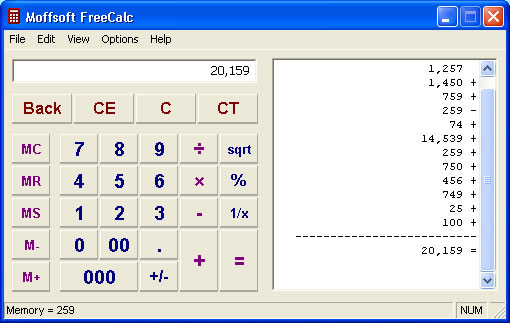
FreeCalc - A different version of the calculator than the one that comes with Windows.  The best part for me is the "tape" it creates so you can see what you have done.  You don't have to just start over anymore!

File Shredder - A tool that permanently deletes files from your computer.  Many people don't understand that just deleting a file from your computer does not actually erase it.  It only removes your ability to get to it easily.  The data is still sitting there on the hard drive until something cleans it up to use it again.  This tool really deletes a file.  It is completely removed from the system with no ability to recover it.

For more advanced users, I also add:
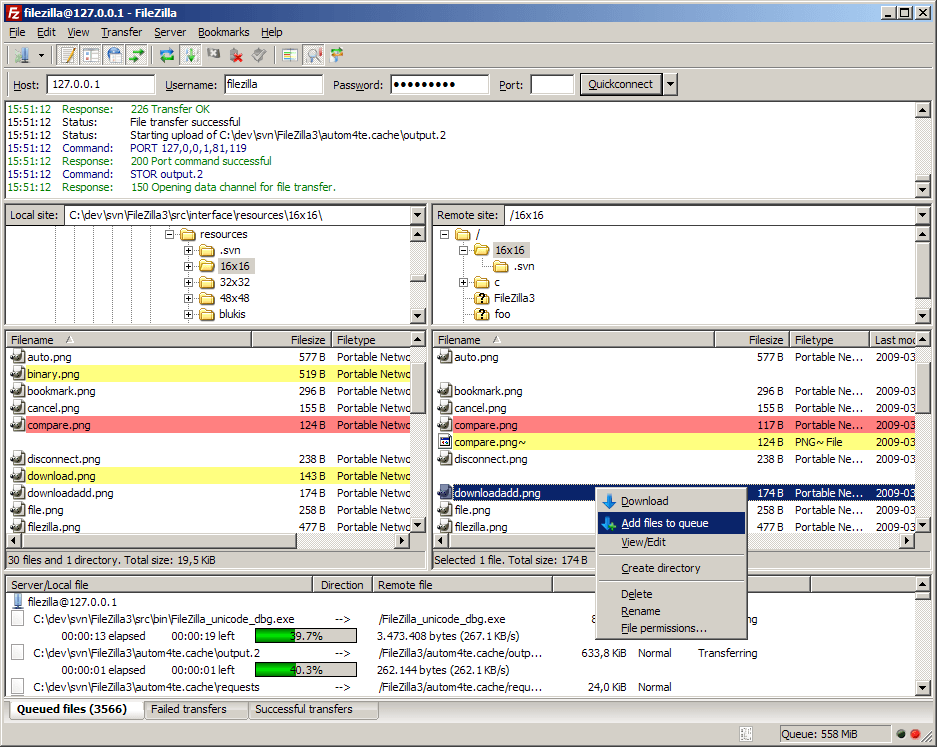
Filezilla - FTP client and server utilities for moving files between computers.  It is a very powerful tool on both ends and allows you to create Site settings for different server connections.


PDF Creator - this tool is similar to CutePDF because it let's you create a PDF by printing to it just like any other printer.  But, this tool has many more advanced tools that let you do things like merge separate PDF files into on largefile, encrypt the files, digitally sign the files and output different formats.

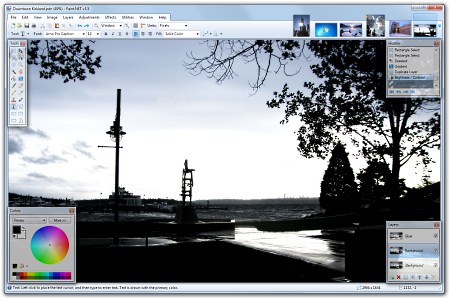
Paint.net - a image and photo editing application that supports layers, special effects, multiple undo and many other powerful editing options.

With these tools in place you are much more capable and productive without spending anything more than your time to install and get to know the applications.  Some of them accept donations instead of license fees.  If you find a tool very useful and use it regularly, think about making a donation.  It cost money just to have the software published and available for you to download.  Even if it is only a few dollars it matters.

Tuesday, November 30, 2010

To the cloud? Cloud Computing? What to think of it all....

Small Business rarely has opportunities to truly compete with the big corporations when it comes to buying power for mobility, productivity and collaboration tools. The tools designed for big enterprise have previously been so expensive to purchase and maintain the Small Businesses that implement them never fully utilize them to gain the advantages they were looking for. Cloud Computing is changing that.

What is the Cloud? What do they mean when they say "To the Cloud" or "I'm in the Cloud" in those ads? The term is yet another chance for the tech crowd to add to the world vernacular. A cloud is the way you represent the Internet in a network diagram. Therefore, when something happens "in the cloud" it is happening using the Internet.  When you store data and run applications directly on the Internet instead of programs on your computer you are working "in the cloud".

Cloud computing is the technology wave we are currently riding. It is moving at a rapid pace.  It is also providing new options for Small Business by opening up access to tools and services at a reasonable rate with very little, if any, hardware and software investment.

If you haven't gotten to know much about cloud computing, take the time now. The paradigm shift is in progress. IBM expects cloud computing to add about $3 billion of net growth to its business by 2015. Microsoft signed a five-year deal with New York City in October to provide services in the cloud. Los Angeles is already working with Google to move services to the cloud. An industry giant and the two largest cities in the country making moves doesn't usually indicate a passing fad.

Chris Mankle writes an excellent analysis of Cloud Computing risks and rewards. I highly recommend the read to get a better understanding of what it means to your business.
Taking the Fear Factor Out of Cloud Computing
— It’s allowing organizations to free themselves from building and managing their own technology infrastructure and is changing how businesses operate. It touches everything from the software running desktop computers to complex business processes and foundational IT infrastructure.
The cloud has provided dramatic gains in efficiency and productivity. It has pervaded blogs, industry conferences and the minds of CIOs with its promise of adaptability, cost benefits and agility, but despite its advantages, some are still hesitant to get onboard due to its inherent risks. While some simply aren’t ready to take a leap of faith, they’re putting themselves at another kind of risk: losing ground to competitors that are taking the risk, and becoming more agile and flexible as a result.

Sunday, November 14, 2010

Sharing Pictures on the Internet

I was recently asked the best way to send pictures to other people. I learned that the people asking the question had been sending individual pictures to others for review. It was a problem because they were sending 5 or 6 at a time in emails and, at times, sent several emails to get all the pics to the person they wanted them to see.

I suggested using an online web album to share pictures. Unless you need to use a high def jpg just a shared online album will work for most any other need.  There are many out there but here are some I have experience with and would recommend to anyone.

Try any of the following services:

Picasa - It is a Google service.  You load a client on your computer and you have a web album to upload your photos and share.  The PC program lets you edit pictures or just click a button and upload them to your web album. You can sign up by going to picasa.google.com. If you have a Google account you can just use it to activate the service. If not, just create a Google account to get started.

Kodak Gallery - It is Kodak's online service. The tool makes it easy to order all kinds of Kodak prints right from your album. The client you download for this one is very nice, too. You just create an account with them. www.kodakgallery.com

Snapfish - This is a very popular site if you like to share and print all kinds of interesting things like books, mugs posters, etc. You can also share videos and edit them using the tools they have. www.snapfish.com

Flickr - another very popular site that does a lot of integration with other tools. www.flickr.com

I have used all of them for one thing or another. They are all nice and any of them would work well for most purposes. I use Picasa these days because it is fully integrated with our Google Apps for Business.  There are many others out there but these are the ones I see the most often.

Share your photo albums online and make it quick and easy to send to anyone, anytime without sending them over and over via email.

Monday, October 18, 2010

Stay Safe Online


October is National Cybersecurity Awareness Month.  It isn't well known but it has been around since 2004.  It is a national public awareness campaign to encourage everyone to protect their personal and business computers and, by extension, our national cyber infrastructure.  

We are constantly connected today.  The Internet is the basis of our digital lives.  Almost everything that you do today is either over the Internet directly or supported by the Internet in some way.  All our financial systems, communications, transportation networks along with the power grids that keep them going are, at some point, using the Internet to function.  It is a fantastic Web-based, digital life we lead.

This campaign is about educating the public that the Internet is our backbone today connecting us to everything and everyone else.  While that continues to create new possibilities and opportunities there has never been one entity responsible for securing the Internet.  Therefore, each of us are responsible for our computers, devices and networks connected to cyberspace.  No one should take it for granted or treat it lightly.

Take the time to understand the risks and where you are vulnerable.  In 2009 a study was conducted to analyze small business' cyber security practices and attitudes.  The summary of key findings are somewhat eye opening.  I encourage everyone to read through the one page summary.   

Finally, while you are getting educated, check out the new global online safety campaign called STOP|THINK|CONNECT.  They have some great tips and tools on that page to help you be more aware of what the threats you are up against when you are connected.

Practice Stop. Think. Connect. and encourage others to do it as well.  It may feel like a daunting task but we are all responsible for protecting ourselves.

Wednesday, September 8, 2010

Bounce Back Emails

I recently learned that people don't actually look at what the bounce back message tells them!  I had no idea that the average user would just see the subject and get frustrated, irritated or give up sending the message.  That black hole they call the Internet has rejected my attempts and I have no other option but to tell that person I can't email them.

Actually, those bounce back emails almost always give you a clue as to why your message was returned.  It is usually just a one line error message that gives the "geek in charge" the information to know why when they get a bounce back question.  Each server out there can send there own messages but there are basic reasons for the bounce back and messages usually mention one of them.  Most people just don't try to look for it because it is buried in a lot of geek speak.

Here are a few common ones and what they mean to you.

Mailbox Not Found, user unknown, invalid user name - these are all messages that mean what they say.  They usually mean you have something wrong in the address or the address you have really is no longer valid.

Content not allowed - this kind of response means the server on the other end is reviewing the content of the emails coming to the server and you didn't make the cut.  Content rejections don't always refer to naughty nightie kinds of content.  Content that can be noticed by blocking software includes things that refer to credit card numbers or social security numbers.  Things that make it think you are trying to get someone to send information via email that shouldn't be sent unsecured.  (You should never, ever include any social security number or credit card numbers in an email).

Once you have been blocked for this reason you have to get someone at that site to "clear" your email address.  No matter how many times you try - you will be rejected.  Sometimes from then on no matter what the content is in future emails.

Your address/domain has been blacklisted - Not a good feeling.  Yes, it means what you think it means.  You are listed as a very bad person to exchange emails with due to something making you look that way.  This is very upsetting to some people and not a simple process to resolve.  There are many different Blacklist services that review email traffic and try to ID the trouble servers and accounts.  They do a really good job so if you end up on this list it is usually because something really is wrong, not because they are.

The last time I dealt with a client who was blacklisted the problem turned out to be a setting at their Internet provider that made them not pass a test with the ONE Blacklist company they were listed with.  That one listing made emails get blocked by several large companies just because they happened to use that list.  Once the ISP found the problem and made a change the name was removed within a couple of hours automatically. It did take a while to figure that one out, though.

Server not available, server busy - Sometimes, you get this message just because the server is having trouble on their end.  If the server gets really busy or needs to be restarted you will get these types of messages.  Those just need time to work themselves out.

Backscatter - It is very important to note there is one other bounce back that can happen which doesn't have anything to do with you.  If you start getting bounce backs that are strange emails you never sent, something else is happening.  You are being hit with backscatter.

Spammers will use all kinds of tricks to get past email servers and get to your inbox.  In order to get around things they set up their spam to make it appear like it came from you.  You never did sent it, it just looks like you did.  That is why you sometimes see your own email address on spam coming in.  They are tricking the servers to let them in.  The Spam Filters figure out  it really is spam once it gets in to the server.  They reject the email and return it to who they think sent it - YOU.

Backscatter if very unsettling when it happens.  Some users hit with it will get hundreds of bounce backs.  Unfortunately, there isn't much that can be done until the servers clear out their messages.  There is no way to know where the spammer sent the information and nothing you can do to block it.  It just eventually stops.

Wednesday, September 1, 2010

Backup Considerations for Home Offices

Backup is the most expensive easy thing to forget about. It's like insurance. If you don’t have it, you will wish you had it, eventually. If you do have it, you think you rarely use it. When a crisis hits there is enough stress without dealing with the fact that you lost that important data on top of everything else.

There are many options to manage a backup. I recommend using more than one. You shouldn't put all your bytes in one basket.

Carbonite, Mozy, Dell Datasafe, Norton Online Backup and iDrive are a few of the many online backup solutions. For single computers it is a wonderful tool. You get data backed up to their server location secured and off-site automatically. Features and prices vary but there are some basic things I believe you should evaluate when making a decision on a service.

Your backup should be fully encrypted before it gets to their server. This means they can’t even look at it on their servers. All they see is there is a secure encrypted file. You have the encryption key and the ability to log in to see your files.

Can you recover everything up there or just one thing?  You may only have one file that got hosed by some bad program. You don't want to restore everything just to get at one thing.

Understand the amount of data and types of data you can save. If you have 30G of music and the backup plan allows for 25G total and of that 25G only half of it can be music files, the solution is not a good idea for you.

As with anything that seems easy and wonderful...... There are some caveats.

When you install the software it usually tells you it will set up the back up to run for standard settings automatically. Those settings include things in the “normal” places people put things. You should have the ability to go and mark anything that isn’t in that normal list to be included in the automatic backup.

Multiple hard drives may be an issue. If you store data on a C drive and a D drive or a C drive and an external hard drive you may only be able to back up data from the C drive. Know this limitation before you proceed. If you are trying to back up pictures and music from an external drive, it may not happen at all.

Unless you are sure what you have to be backed up and where it is stored, you can’t be sure everything you need is actually being backed up.

A slow computer on a slow connection will get slower running these online backup routines. They may tell you it doesn't create a problem but it does impact the system. You don't notice it very much on a newer, faster machine but you will on an older one. There are some tweaks you can do to help with that on the settings, usually.

As I mentioned originally, I suggest there are multiple backup options in your plans. You don't have to back up every single thing twice but important things should be redundantly backed up. Important documents or financial records, a DJs music collection or a photographers pictures or any other thing you hold dear should be saved in multiple places.

Consider using a flash drive to save those really important things separately from time-to-time. For example, financial records should be saved at the end of a period and then drop them off in a safety deposit box. The tiny flash drives hold plenty of data without taking up lots of space.

Also, consider investing in an external hard drive to use just for backing things up. Your system can be set up to save certain things automatically or you can do it manually. This solution protects your data in the event of a system failure but not if your computer and hard drive meet a miscreant or Mother Nature's Fury while in the same physical location.

Finally, a periodic review of what is being backed up and where is always a good idea. In the digital world we live in today we need to keep copies of everything important just like we did before with paper.

Yes, I said "we" - I am that old. :)

Antivirus Options for Home Office

There are several free version of antivirus software available for download. They are free because they are stripped-down versions of full featured products. Companies offer the free version to get you in the door so you will order an upgrade to the paid version. It allows for the most basics systems to be protected from the thugs that attack systems all over the world.

Some good free ones are offered by AVG, avasti and Avira.  You can do a web search for the name and free to get the links directly to them.

Remember, these are stripped down versions of a full featured security application.  Most will protect you from viruses and a good bit of spyware but they will not protect you from every threat you could run into on the Interwebs.  There are other things out there like phishing sites, rootkits, etc that will not be completely blocked.  You can read the differences between the free version and the paid version on the vendor website to see what is not included.  (There should be an easy to find comparison chart on the site or you probably shouldn't use the software.)  

Also, remember to always check the status of your antivirus software on a regular basis.  You should periodically confirm that scans are running without having to kill a lot of things every time.  Plus, make sure all it’s databases and software are up to date.  You should be able to set all of that to happen automatically.  But, just like everything else in the world, you have to check on it now and then to be sure it is doing ok.

That being said, there is no reason you can’t use one of these and save the money.  At least you are protected from the most dangerous stuff. Free protection that is up-to-date and verified to be scanning is the minimum configuration that should be allowed on any network, even a network with only one computer connected to the Internet. That is still a network.

If you are using your computer to run a small business, it is always better to use a full featured [paid for] security software application to protect your data and system integrity. If you can't afford the paid versions, don't run your system without the free version, at a minimum.